

How to do a Facebook Share from a WOW page
Doing a Facebook Share is one of those things that is easy - when you know how.
On Facebook the type of Share we use is the Check-In.
This is most typically used by customers at a restaurant - they will take a selfie of themselves - or a photo of their meal - and 'Check-In' with the restaurant Facebook page in the process.
This tells their friends where they are and friends always Like and Comment on a Share like this.
So we are borrowing this from the hospitality sector and making it work for your business to get visibility in front of fresh eyeballs in the form of an endorsement from your happy customer.
Step 1:
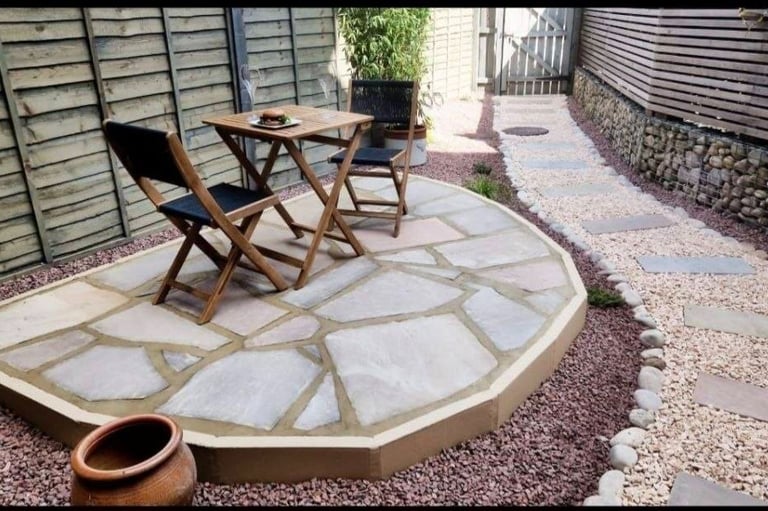
Your customer takes a photo or two of the completed project with their phone
They're really happy with the work and like to support local independent business, so you can expect at least some customers to take these few steps.
After you have finished and left - the WOW Card serves as a gentle reminder/nudge - especially if they said they would share a photo on their Facebook or Instagram
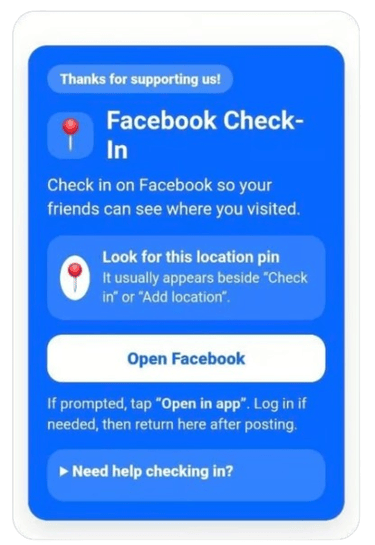
Tap the white 'Open Facebook' button
There is also a button 'Need help checking in?' to assist people who are not sure what to do
Step 2:
Your customer scans the QR code on your WOW Card and arrives on the WOW Page
They will easily find the Facebook Share module in Facebook blue
Step 3:
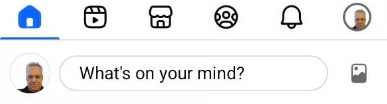
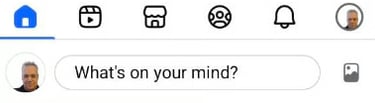
At the top of your Facebook page tap:
'What's on your mind?'
(just as if you were making a normal post)
Step 4:
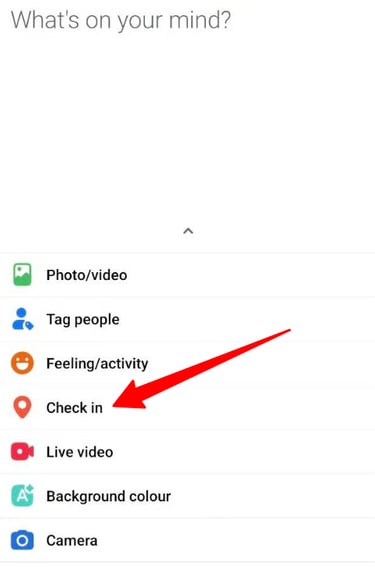
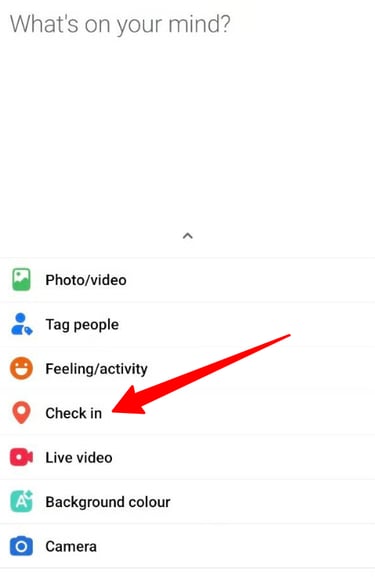
On the next screen you will see a list
Tap: Check in
Step 5:
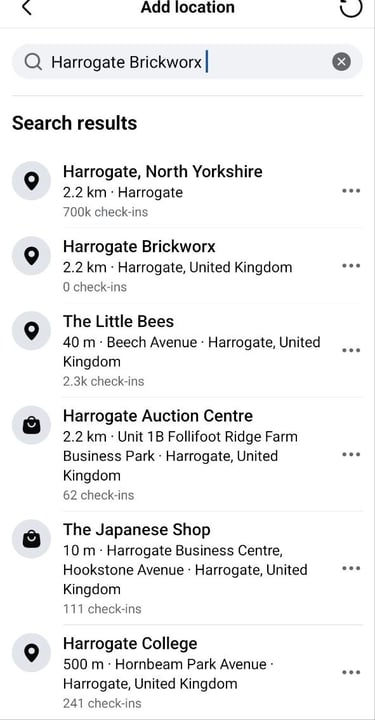
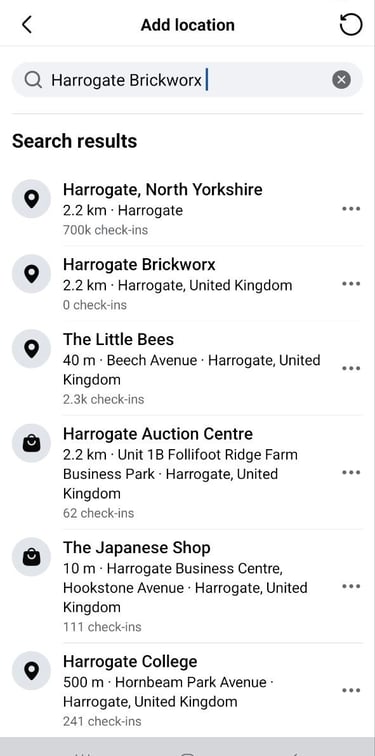
On the next screen at the top of the page will be a Search box
Enter the name of the business - it will appear below
Tap: Harrogate Brickworx
Step 6:
Almost done! :)
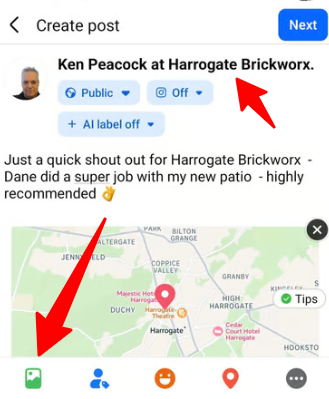
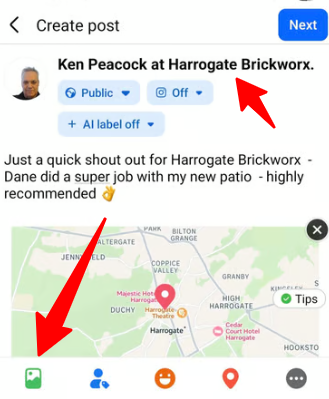
Business name is showing at the top - Check In is good.
Customer enters a short comment about their satisfaction with the finished job and the general service.
Then in the bottom left corner tap the green icon to select the photo(s) from the phone image Gallery
Step 7:
Last step
Everything looks good
1) Harrogate Brickworx at the top - Check in is good.
2) Comment made.
3)Photo uploaded
Tap NEXT and then on next page tap SHARE
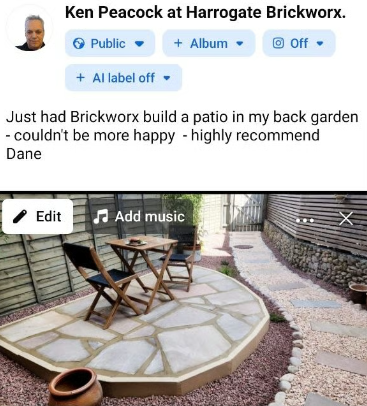
This is great as it provides engaging content for your Facebook in the form of authentic customer endorsements.
These endorsements make keeping your Facebook page active easier - and visitors to your Facebook will be impressed by the positive comments from previous customers.
Below is how to do this.
The contractor can re-share a customer Check in
but only if the customer’s check-in post is public or visible to the business/Page.
If the customer’s privacy settings restrict it, the contractor may get a notification but not be able to share it properly.
The usual flow is:
When you get a Facebook check-in notification,
open the customer’s post,
press Share and choose Share to a Page,
select your business Page,
add a quick thank-you message, then post it.
If you don’t see “Share to a Page”, the customer’s privacy settings may not allow it
— in that case, comment on the post and ask them to make it public or tag your business Page.
Added bonus:
You can usually re-share your Customers Check in to your Facebook business page.
© 2026. All rights reserved.
Biz Buzzio Digital Solutions Ltd
Company Registration Number: 15957244
Registered in England & Wales
Business Address:
Hammerain House, Hookstone Avenue, Harrogate, HG2 8ER, United Kingdom
Email: hello@bizbuzzio.com
Biz Buzzio provides digital marketing systems, automation platforms and lead generation services for local businesses.